Case management & calling system for judicial scrivener offices
Saimiya
Client records are created from the consultation call, and management after intake of creditors, litigation, payments, and invoicing is handled in a single browser-based system.
- Who it's for
- Judicial scrivener offices handling debt restructuring
- Scope
- From consultation intake to post-intake management and invoicing
- Environment
- Browser (no installation needed)
- Adoption
- Starts with an individual consultation
If your office already uses Saimiya,log in here
Business challenges Saimiya solves
- Taking notes while listening is time-consuming
- The staff member who takes the call has to listen, take notes at the same time, and re-enter them after the call. Anything missed means calling back to check.
- Client information and case information end up separated
- When call records, the client list, and case progress are kept in separate places, checking the current status takes time.
- Consultation content needs careful handling
- Debt restructuring consultations include matters the client does not want others to know. It is necessary to decide in advance what to keep and what not to keep.
- After intake, management is scattered by creditor and by document
- When creditor investigations, settlement terms, court dates, and payment schedules are kept in separate sheets and documents, checking the status of a whole case takes time.
- Confirming deposits and preparing invoices is laborious
- Comparing bank transactions against payment schedules, calculating fees, and putting them into an invoice becomes a heavier burden as the caseload grows.
Workflow
From the call to invoicing, the flow is as follows. Because the accuracy of names and lenders picked up from speech can vary, staff are expected to check them before saving.
From consultation to engagement
Call / consultation intake
Calls are made and received from the browser. The office's own number can be used as the caller ID.
Call recording
Calls are temporarily recorded in order to create client records.
Transcription
Audio is converted to text. The full transcript is not stored.
AI information extraction
19 client-information fields, such as name, address, and lenders, are extracted.
Client record registration
Staff check and correct the information, then it is encrypted and saved.
Case registration & management
From the case list and status-based filtering to changing status, all in the same screen.
After engagement
Creditor registration
Lenders picked up during the call are registered automatically as the case's creditors.
Claim investigation & settlement
Disclosed amounts, recalculated amounts, settlement amounts, number of installments, and more are recorded for each creditor.
Litigation sheets & court dates
A litigation sheet and court dates are recorded for each creditor. Court dates within 30 days are shown above the case list.
Payment plans & deposits/withdrawals
Create plans for reserve funds, fees, and repayments to creditors, then import bank CSVs and match them against the schedule.
Fee rules & invoices
Draft invoices with their basis shown are generated from the office's fee rules, and managed through issue, marked-as-paid, and cancellation.
Export to accounting software
Confirmed transactions can be exported as a CSV for freee's transaction import (administrators only).
Key features
Intake and client management
From the call to client and case management
Turn a consultation call into client information you can check, and connect it to the client list and cases.
- Create client records from calls
- 19 fields, including name, date of birth, address, and lenders, are extracted from the call and reflected in the client list. Staff can check and correct them before saving.
- How recording and transcription are handled
- Calls are temporarily recorded and transcribed in order to create client records. Once the extraction is complete, the recording is deleted and the full transcript is not stored. Only calls for which extraction failed keep the recording, so it can be retried.
- Client list and case management
- The client list supports listing, search, and filtering by date. Cases support listing, filtering by status, creation, and status changes.
- Acquisition cost totals
- The cost per case acquired is calculated from the actual call charges and AI usage fees, and displayed.
- Configurable extraction fields
- Administrators can add or remove the fields to be captured from the settings screen.
- Data separated per office
- Clients, cases, and call history are managed separately for each office.
After intake
From creditor investigation to payment and invoicing
Work after intake (investigating, settling, paying, and invoicing each creditor one by one) can be managed in the same system.
- Claim investigation and settlement, per creditor
- Record, for each creditor, the disclosed amount, recalculated amount, interest, breaks in the transaction history, and confirmation of the contract terms, along with the settlement amount, number of installments, monthly amount, remainder, and start date. The remainder (settlement amount − monthly amount × installments) is calculated automatically. The system does not perform the recalculation itself; enter the result calculated by your office.
- Litigation sheets and court dates
- Record the case number, court, issues, filing date, and status of submitted documents; court dates with their date, type, and outcome; and out-of-pocket stamp and postage costs with refunds. Court dates within 30 days are shown together, office-wide, above the case list.
- Payment plans
- Create plans for reserve funds, fees, and repayments to creditors from a start month, number of installments, and monthly amount. Repayments to creditors are filled in from the settlement terms, and you can specify how the remainder is handled and the months of proxy repayment.
- Importing and matching bank transactions
- Import a bank's transaction CSV and the system shows candidates by checking it against the payment plan's schedule. Only the entries that staff confirm become deposit and withdrawal records. Column layouts for GMO Aozora, SBI Sumishin, and Sumitomo Mitsui are provided, and other banks can be configured.
- CSV export for freee
- Confirmed transactions are exported as a CSV for freee's transaction import. The settlement account and account item names can be matched to your office's settings. Only administrators can do this, and each export is kept in the history.
- Fee rules and invoices
- From your office's fee rules (retainer, reduction fee, overpayment-refund fee, and more; items can be added), draft invoices are created per creditor with their basis shown. Lines can be edited, and an issued invoice can no longer be edited. The system does not judge whether rates or amounts comply with the law or your bar association's rules.
- Expense list and printing of notices of engagement
- Record out-of-pocket costs such as stamps, postage, travel, document copying, and certificates for each case. A notice of engagement can be output for printing per creditor from your office's identification and the notice text. Printing is kept in the operation history.
- Consultation history (contact log)
- Record each client's consultations and contacts with the channel, direction, content, and the next action and its due date. Content is encrypted before storage, and next actions due within 7 days are shown above the case list.
Actual screens
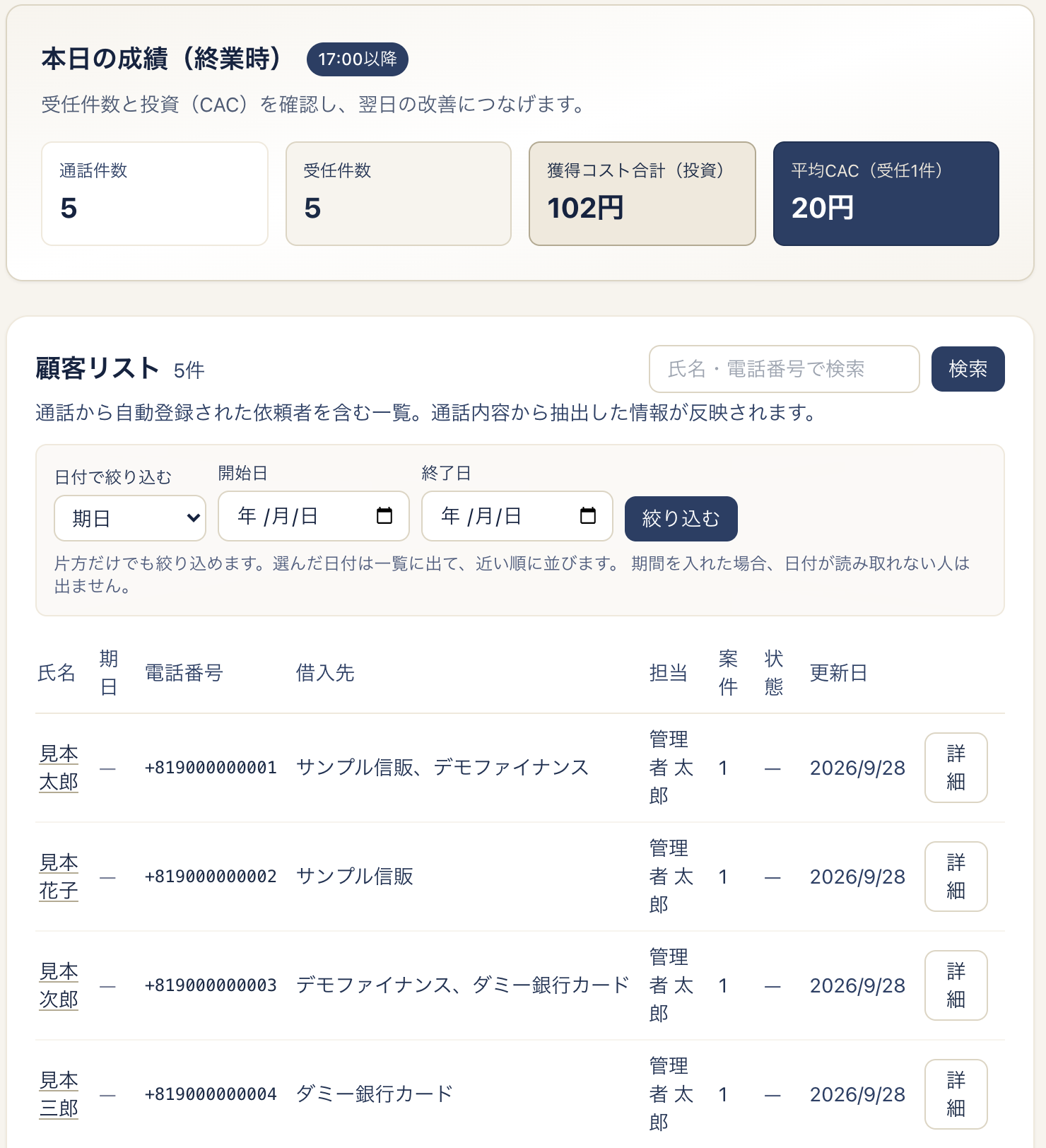
A list of clients created from calls, along with today's call and intake status.
See the whole picture in one screen
Today's call and intake status, and the client list created from calls, can both be checked in the same screen.
Acquisition cost totals
The cost per case acquired is calculated and displayed from actual call charges and AI usage fees.
Client list and case management
The client list supports listing, search, and filtering by date. Cases support listing, filtering by status, creation, and status changes.

The screens show demo data. All names, phone numbers, and lenders shown are fictional.
How information is handled
Debt restructuring consultations include matters clients do not want others to know. It is designed to keep what is stored to a necessary minimum, and to encrypt what is stored.
- Information that is stored
- What is kept is the extracted client information and the call history (date/time, call duration, charges). Names, addresses, phone numbers, and consultation notes are encrypted (AES-GCM) before storage. Phone numbers are used for matching in a form from which the original number cannot be recovered.
- Recording and transcription
- Calls are temporarily recorded and transcribed in order to create client records. Once the extraction is complete, the recording is deleted and the full transcript is not stored. Only calls for which extraction failed keep the recording, so it can be retried.
- Restrictions on CSV export
- Only administrators can export client data as CSV. Export can be allowed or stopped per office, and there is also a limit on the number of exports. A record of each export is kept in the history.
- Operation history
- Important operations are kept as a history, recorded in a form that lets later verification confirm the content has not been altered.
- Separation per office
- Clients, cases, and call history are managed separately for each office and are not shown on other offices' screens.
- Two-step verification
- Two-step verification is available for login. It is required for administrators and optional for staff. Recovery codes can also be issued.
- Reviewing the operation history
- Administrators can review the operation history filtered by person, type, and date. Each time client information is viewed is also recorded.
- Operations only administrators can perform
- Important operations, such as changing fee rules, freee settings and export, and CSV export, can be performed only by administrators. Administrators can be added from the screen.
FAQ
What kind of offices is this for?
It is currently developed with judicial scrivener offices that handle debt restructuring in mind. For use in other kinds of work, please contact us so we can discuss the details.
Are call recordings or transcripts kept?
Calls are temporarily recorded and transcribed in order to create client records. Once the extraction is complete, the recording is deleted and the full transcript is not stored. Only calls for which extraction failed keep the recording, so it can be retried.
Can it be used with our current phone setup?
After hearing about your current phone environment, we will let you know whether it can be supported.
How long does setup take, and what does it cost?
This varies with the size and operations of the office, so we provide guidance individually. Please contact us first.
Is the information the AI extracts registered as-is?
The extraction results are meant to be checked and corrected by staff before saving, since the accuracy of names and lender names picked up from speech can vary.
Can client data be exported?
Administrators can export it as CSV. However, there is a setting to stop export per office, and there is also a limit on the number of exports. A record of each export is kept in the history.
Can it manage cases after intake as well?
Yes. In the same system you can manage records of claim investigation and settlement for each creditor, litigation sheets and court dates, payment plans, matching of bank transactions, and drafts of invoices based on your fee rules.
Does it connect with accounting software?
Currently it can export a CSV for freee's transaction import. Export is limited to administrators and covers confirmed transactions.
Are there safeguards for logging in?
Two-step verification is available. It is required for administrators and optional for staff, and recovery codes can be issued.
Talk to us about adoption
We'll ask about your office's operations and phone environment, and work with you to see whether Saimiya is a good fit.